![CrushBank Full Logo Vibrant 2 text with fist.png]](https://support.crushbank.com/hs-fs/hubfs/CB%20Logo/CrushBank%20Full%20Logo%20Vibrant%202%20text%20with%20fist.png?height=40&name=CrushBank%20Full%20Logo%20Vibrant%202%20text%20with%20fist.png)
- Log in to your account at claude.ai (or the desktop app)
- Click on Plugins on the left side bar
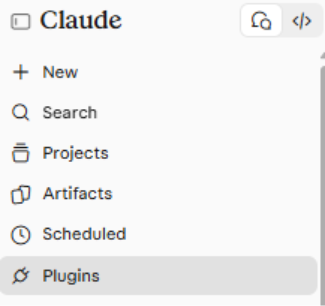
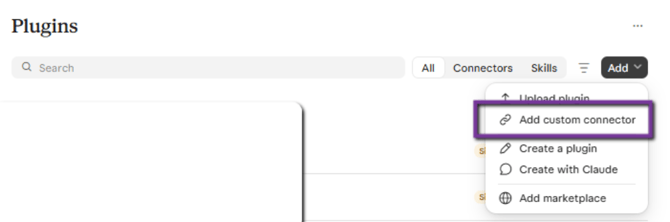
- Click Add, then Add Custom Connector
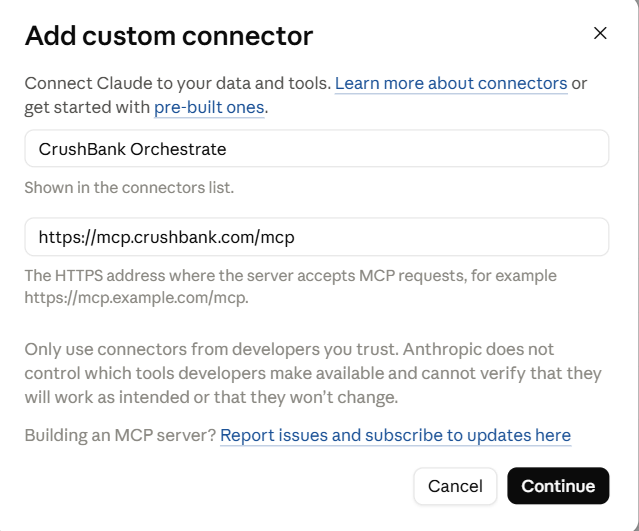
- You will be prompted to enter a name and remote MCP server URL
- Name – Enter in a meaningful name for your customer connector (ex. CrushBank Orchestrate
- Remote MCP server URL – https://mcp.crushbank.com/mcp
- Click Continue
- Then keep everything as is and click Add at the bottom
- You will be prompted to login using the credentials you setup for CrushBank
- Find the connector you just created and click on it, then click on the permissions tab. You will see a Needs approval from down on the right, click that and choose Always Allow
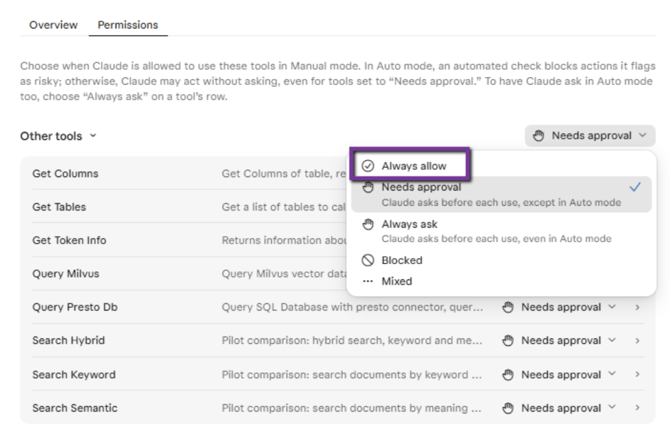
- Now your CrushBank Connector is setup and ready to use
If you have an Claude Team account just the admin has to setup the connector and it will flow down to all users. If you have individual accounts, each user has to setup their own connector.
Please reach out to support@crushbank.com if this is not up to date as Anthropic changes how to setup a connector frequently.